

Performance & Speed
Deconstructing the "Speed Fairytale"
“Fast is fine, but accuracy is everything.”
Wyatt Earp (and every frustrated online shopper)
You have a 98 Lighthouse Score. Your developer says the site loads in 0.8 seconds. You are paying $5,000 a month for enterprise hosting.
And yet, your customers keep leaving because the site “feels slow.”
Why?
Because Speed is a Feeling, not a Number.
If a page loads in 0.5 seconds but the button jumps three pixels to the left right before you click it, it feels broken. It feels “janky.” If a page loads in 2 seconds but the button is ready instantly and stays put, it feels fast.
You are optimizing for a Robot (Lighthouse). You need to optimize for a Human.
The Math Nobody Talks About
Section titled “The Math Nobody Talks About”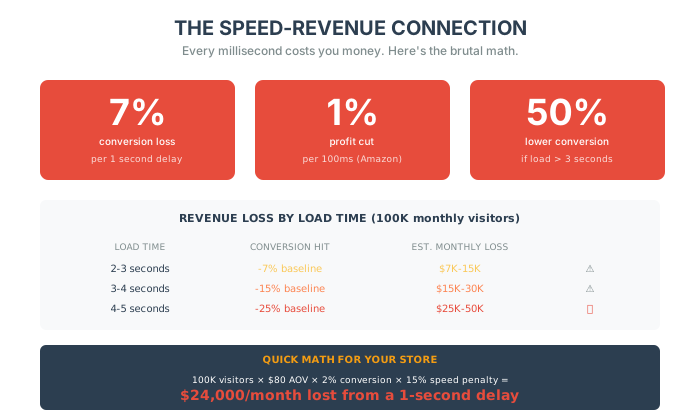
Let me give you the numbers that should terrify you:
- A 1-second delay in page response time = 7% loss in conversions. Mobile gets hit even harder.
- Pages taking over 3 seconds to load have conversion rates 50% lower than those loading in under one second.
- Amazon found every 100ms increase in load times cut profits by 1%.
Read that last one again.
One hundred milliseconds. The blink of an eye. One percent of profit.
If you’re doing 500,000 you’re leaving on the table. Every. Single. Year.
And according to Hubspot, websites that take longer than 4 seconds experience an average drop in conversion rates at 4.42% per second of delay.
The data is brutal: when people land on slow-loading pages, they hit the back button and move on to faster sites.
The Speed Lies You’ve Been Told
Section titled “The Speed Lies You’ve Been Told”Let me debunk the myths that are costing you money.
Lie #1: “Lighthouse Score = Fast Site”
Section titled “Lie #1: “Lighthouse Score = Fast Site””Google lied to you. They told you that LCP (Largest Contentful Paint) is the holy grail.
It’s important for SEO. But it is meaningless for conversion if the experience sucks.
Perceived Speed > Actual Speed.
The human brain considers anything under 100ms to be “instant.” If you click and nothing happens for 300ms, your brain registers “delay.” If you click and nothing happens for 1000ms, your brain registers “broken.”
Your goal is not to make the database faster. Your goal is to make the brain happy.
Lie #2: “More Tools = Better Performance”
Section titled “Lie #2: “More Tools = Better Performance””I was consulting for an e-commerce brand doing $40M in annual revenue.
Their tech stack looked like a Frankenstein monster: seven different tools duct-taped together, each solving short-term problems but creating long-term chaos.
- Customer support tickets slipped through the cracks
- Inventory systems didn’t sync in real time
- Campaign data took days to piece together
And the worst part? They thought this was normal.
This is technical debt—and it compounds like interest on a credit card. Every manual workaround, every tool that doesn’t sync, every script that’s “temporarily” running—they all add up.
Here’s what technical debt actually costs you:
- Slower development cycles
- Unreliable analytics
- Poor customer experience
- Repetitive manual workflows
- Costly re-platforming later
The brands I’ve seen scale fastest aren’t the ones with the fanciest tech stacks. They’re the ones who ruthlessly simplify. Speed and scalability come from streamlining, not stacking.
The Fix: Audit your tools quarterly. If a tool isn’t delivering 10x its cost in value, kill it. Simplicity scales. Complexity collapses.
Lie #3: “Just Add More Servers”
Section titled “Lie #3: “Just Add More Servers””A luxury apparel site was doing $20M a year. It was painfully slow. The CTO had added 10 more servers. The site was still slow.
I opened the logs. I found a “Ghost Job.”
A script from a vendor they had fired 3 years ago was still running. Every time a customer loaded a product page, this script tried to connect to a dead server, timed out, and retried 5 times.
It was eating 40% of their CPU.
We deleted one line of code. The site speed doubled instantly.
We didn’t need more servers. We needed matches.
The Real Villain: “Uncanny Slowness”
Section titled “The Real Villain: “Uncanny Slowness””Here’s what we’ve found across hundreds of stores:
The stores that feel slow aren’t always the slowest. They’re the ones that confuse users.
You’ve felt this before:
- A store loads visually but nothing’s clickable yet.
- The page jumps around while you’re trying to tap something.
- A button doesn’t show a spinner when clicked, so you click again.
- You open a collection and aren’t sure if the page changed because the layout didn’t update.
This is “uncanny slowness.” The store looks like it should be fast. But it behaves in a way that makes users feel unsure or even lost. It erodes trust. And that’s what kills conversion.
You can have a Lighthouse score of 95 and still feel broken.
The Silent Killer: Micro-Delays
Section titled “The Silent Killer: Micro-Delays”We’ve been trained to think in seconds—“get your site under 2s load time”—but the real battle is in the milliseconds.
Tiny friction points, repeated a few times, quietly break trust:
- A 300ms delay after tapping “Add to Cart”
- A spinner that lingers too long without feedback
- A filter that doesn’t visually respond until the page reloads
Individually, they’re barely noticeable. Together, they compound.
And when users sense “this feels off,” they bounce—even if they can’t articulate why.
The Detection Protocol: Is Your Site Actually Slow?
Section titled “The Detection Protocol: Is Your Site Actually Slow?”Before you optimize anything, you need to know what’s actually broken. Here’s a 30-minute diagnostic that will reveal the truth.
Step 1: The Real-World Test (10 minutes)
Section titled “Step 1: The Real-World Test (10 minutes)”Forget Lighthouse. Test like a real customer.
- Borrow an old phone – Not your iPhone 15. A 3-year-old Android.
- Leave the office Wi-Fi – Use 4G. Better yet, find a spot with poor reception.
- Clear the cache – First-time visitor experience matters most.
- Complete a purchase – From homepage to checkout confirmation.
- Time it – How long did it actually take?
Red flags:
- 🚨 Total time from homepage to checkout > 2 minutes
- 🚨 Any page takes > 4 seconds to feel interactive
- 🚨 You tapped a button and nothing happened for > 500ms
- 🚨 The page layout shifted while you were trying to tap something
Step 2: The Numbers Audit (10 minutes)
Section titled “Step 2: The Numbers Audit (10 minutes)”Open Chrome DevTools. Go to the Performance tab. Record a page load.
Check these metrics:
| Metric | Target | Red Flag |
|---|---|---|
| Time to First Byte (TTFB) | < 200ms | 🚨 > 600ms |
| First Contentful Paint (FCP) | < 1.8s | 🚨 > 3s |
| Largest Contentful Paint (LCP) | < 2.5s | 🚨 > 4s |
| Time to Interactive (TTI) | < 3.8s | 🚨 > 7.3s |
| Cumulative Layout Shift (CLS) | < 0.1 | 🚨 > 0.25 |
| Total Blocking Time (TBT) | < 200ms | 🚨 > 600ms |
Step 3: The Payload Inspection (10 minutes)
Section titled “Step 3: The Payload Inspection (10 minutes)”Open DevTools → Network tab. Reload the page.
Count and categorize:
- Total page weight: Should be < 2MB
- Number of requests: Should be < 80
- JavaScript size: Should be < 400KB (compressed)
- Images: Should be < 500KB total above-the-fold
- Third-party scripts: Count them. More than 10? You have a problem.
Red flags:
- 🚨 Total page weight > 4MB
- 🚨 More than 150 HTTP requests
- 🚨 JavaScript > 1MB (compressed)
- 🚨 Hero image > 300KB
- 🚨 Third-party scripts blocking the main thread
Step 4: The Competitor Benchmark
Section titled “Step 4: The Competitor Benchmark”Test your top 3 competitors with the same method.
If they load 2 seconds faster on mobile, you’re losing customers to them. Every single day.
Step 5: The Revenue Impact Calculator
Section titled “Step 5: The Revenue Impact Calculator”Speed isn’t abstract. It’s money. Use this table to estimate what your slowness is costing you.
| Your Current Load Time | Conversion Rate Impact | Monthly Traffic | Est. Monthly Revenue Loss |
|---|---|---|---|
| 2-3 seconds | -7% baseline | 100,000 | ~$7K-15K |
| 3-4 seconds | -15% baseline | 100,000 | ~$15K-30K |
| 4-5 seconds | -25% baseline | 100,000 | ~$25K-50K |
| 5+ seconds | -40%+ baseline | 100,000 | 🚨 $40K-80K+ |
The compound effect:
- 🚨 Every 100ms delay = 1% conversion drop (Amazon data)
- 🚨 Mobile users are 5x more sensitive to speed than desktop
- 🚨 Return visitors who experienced slowness convert 23% lower on subsequent visits
- 🚨 Slow sites have 2.5x higher cart abandonment rates
Quick math for your store:
(Monthly Traffic) × (AOV) × (Current Conversion Rate) × (Speed Penalty %) = Revenue You're LosingExample: 100,000 visitors × $80 AOV × 2% conversion × 15% penalty = $24,000/month lost
That’s $288,000 per year from a 1-second delay.
The 3-Tier Speed Fix Framework
Section titled “The 3-Tier Speed Fix Framework”Now that you know what’s broken, here’s how to fix it—in order.
Quick Fixes (This Week: 2-8 hours, 20-40% improvement)
Section titled “Quick Fixes (This Week: 2-8 hours, 20-40% improvement)”These are risk-free wins. Do them today.
1. Enable Compression (Brotli/Gzip)
- Time: 30 minutes
- Impact: 50-70% reduction in file transfer size
- How: Add to your server config or enable in CDN settings
2. Compress and Convert Images
- Time: 2-4 hours
- Impact: 30-50% faster page loads
- How: Run all images through TinyPNG, convert to WebP, set max width 1200px
3. Implement Browser Caching
- Time: 1 hour
- Impact: 40-60% faster repeat visits
- How: Set cache headers for static assets (1 year for images, 1 month for CSS/JS)
4. Add Prefetch on Hover
- Time: 30 minutes
- Impact: Instant perceived page transitions
- How: Use the hover hack script (see above)
5. Defer Non-Critical Scripts
- Time: 1-2 hours
- Impact: 20-40% faster TTI
- How: Add
deferto analytics, chat widgets, social buttons
Medium Fixes (This Month: 1-4 weeks, 40-60% improvement)
Section titled “Medium Fixes (This Month: 1-4 weeks, 40-60% improvement)”These require more effort but deliver sustained results.
1. Implement Smart Lazy Loading
- Time: 1 week
- Impact: 30-50% faster initial load
- How: Lazy load below-fold images, eager load above-fold content
2. Optimize Critical Rendering Path
- Time: 1-2 weeks
- Impact: 40-60% faster FCP
- How: Inline critical CSS, defer non-critical CSS, eliminate render-blocking resources
3. CDN Implementation
- Time: 3-5 days
- Impact: 50-70% faster for global visitors
- Tools: Cloudflare (free tier available), Fastly, CloudFront
4. Third-Party Script Audit
- Time: 1 week
- Impact: 30-50% faster TTI
- How: Remove unused scripts, load remaining ones after page interactive
5. Image Optimization Pipeline
- Time: 1 week
- Impact: Prevents future performance regression
- How: Automate compression, WebP conversion, responsive image generation
Deep Fixes (This Quarter: 4-8 weeks, 60-80% improvement)
Section titled “Deep Fixes (This Quarter: 4-8 weeks, 60-80% improvement)”These are infrastructure investments for long-term performance.
1. Server-Side Rendering (SSR) or Static Site Generation (SSG)
- Time: 4-6 weeks
- Impact: 60-80% faster TTFB and FCP
- When: If you’re using a heavy JavaScript framework (React, Vue SPA)
2. Edge Caching Strategy
- Time: 2-4 weeks
- Impact: 70-90% reduction in origin requests
- How: Cache HTML at the edge with smart invalidation
3. Database Optimization
- Time: 2-4 weeks
- Impact: 50-70% faster dynamic content
- How: Query optimization, connection pooling, read replicas
4. Headless Commerce Architecture
- Time: 6-12 weeks
- Impact: 2-3x faster page loads, improved developer velocity
- When: If you’re hitting platform limitations
Case Study: From 6.2s to 1.8s (71% Faster)
Section titled “Case Study: From 6.2s to 1.8s (71% Faster)”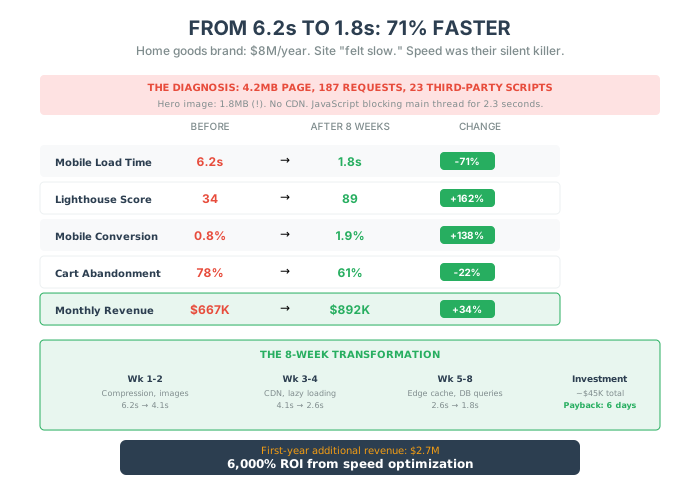
Let me break down a real transformation.
The Client: A home goods DTC brand doing $8M/year
The Problem:
- Mobile page load: 6.2 seconds
- Lighthouse score: 34
- Mobile conversion rate: 0.8%
- Cart abandonment: 78%
- “Site feels slow” was the #1 customer complaint
The Diagnosis:
- 4.2MB total page weight
- 187 HTTP requests
- Hero image: 1.8MB (not compressed)
- 23 third-party scripts
- No CDN
- No image optimization
- JavaScript blocking the main thread for 2.3 seconds
The Fix (8-week timeline):
Week 1-2: Quick Fixes
- Enabled Brotli compression (-60% transfer size)
- Compressed all images, converted to WebP (-70% image size)
- Added browser caching
- Deferred 18 non-critical scripts
Result: 6.2s → 4.1s
Week 3-4: Medium Fixes
- Implemented Cloudflare CDN
- Set up smart lazy loading with LQIP
- Inlined critical CSS, deferred the rest
- Removed 8 unused third-party scripts
Result: 4.1s → 2.6s
Week 5-8: Deep Fixes
- Moved to edge-cached static pages for collections
- Optimized database queries (removed N+1 queries)
- Implemented predictive prefetching
- Set up automated image optimization pipeline
Result: 2.6s → 1.8s
The Results (3 months post-optimization):
| Metric | Before | After | Change |
|---|---|---|---|
| Mobile load time | 6.2s | 1.8s | -71% |
| Lighthouse score | 34 | 89 | +162% |
| Mobile conversion rate | 0.8% | 1.9% | +138% |
| Cart abandonment | 78% | 61% | -22% |
| Revenue (monthly) | $667K | $892K | +34% |
ROI Calculation:
- Investment: ~$45K (contractor time + tools)
- Monthly revenue increase: $225K
- Payback period: 6 days
- First-year additional revenue: $2.7M
That’s a 6,000% ROI from a speed optimization project.
Understanding Core Web Vitals
Section titled “Understanding Core Web Vitals”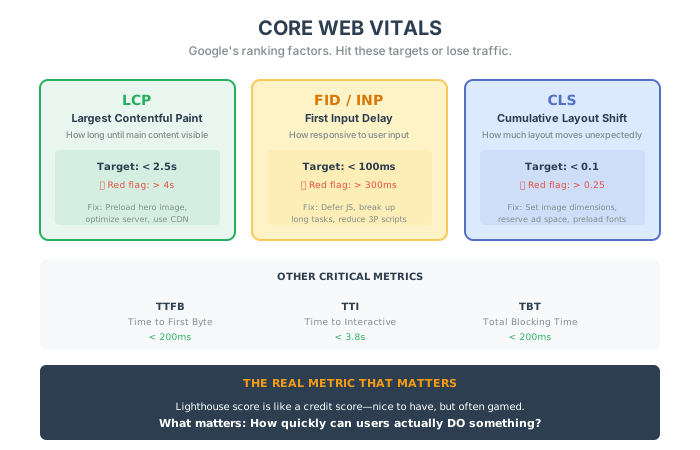
Google now uses Core Web Vitals as a ranking factor. Here’s what each one means and how to fix it.
Largest Contentful Paint (LCP)
Section titled “Largest Contentful Paint (LCP)”What it measures: How long until the main content is visible.
Target: Under 2.5 seconds
Common causes of poor LCP:
- Slow server response time
- Render-blocking JavaScript and CSS
- Slow resource load times
- Client-side rendering
Fixes:
- Preload your LCP image:
<link rel="preload" as="image" href="hero.webp"> - Optimize server response time (target < 200ms TTFB)
- Inline critical CSS, defer non-critical
- Use a CDN for static assets
First Input Delay (FID) / Interaction to Next Paint (INP)
Section titled “First Input Delay (FID) / Interaction to Next Paint (INP)”What it measures: How responsive the page is to user input.
Target: Under 100ms
Common causes of poor FID:
- Heavy JavaScript execution
- Long tasks blocking the main thread
- Too many third-party scripts
Fixes:
- Break up long JavaScript tasks
- Defer non-critical JavaScript
- Use web workers for heavy computations
- Reduce third-party script impact
Cumulative Layout Shift (CLS)
Section titled “Cumulative Layout Shift (CLS)”What it measures: How much the page layout moves unexpectedly.
Target: Under 0.1
Common causes of poor CLS:
- Images without dimensions
- Ads and embeds without reserved space
- Web fonts causing FOIT/FOUT
- Dynamic content insertion
Fixes:
- Always set
widthandheighton images - Reserve space for ads and dynamic content
- Use
font-display: swapand preload fonts - Avoid inserting content above existing content
What’s Actually Slowing You Down
Section titled “What’s Actually Slowing You Down”Most devs, marketers, and founders obsess over speed audits. They run Lighthouse reports. They debate whether 1.9s is better than 2.1s. But the real culprits are far more subtle.
1. Third-Party Scripts You Forgot About
Section titled “1. Third-Party Scripts You Forgot About”Pixel tracking. Heatmaps. Review widgets. Social share buttons. Exit-intent popups.
These are sneaky little demons. One by one, they don’t seem like much. But stack them up and they can turn your store into a digital molasses pit.
Each script can add 100-500ms of load time, and even worse, many block rendering. That means your customer is staring at a blank screen while your popup plugin loads.
Solution: Audit your site with WebPageTest or Chrome DevTools → Performance. Eliminate or defer anything non-essential.
2. Oversized JavaScript Frameworks
Section titled “2. Oversized JavaScript Frameworks”If your store runs on a bloated frontend framework (looking at you, React SPAs that mimic Shopify), your “fast” server doesn’t matter. You’re shipping megabytes of JavaScript that users don’t need.
And on mobile? That’s a guaranteed bounce.
Solution: Go lightweight. Vanilla JS when possible. Use server-side rendering (SSR) or static site generation (SSG). Stop treating your online store like a Silicon Valley SaaS app.
3. Layout Shift Syndrome
Section titled “3. Layout Shift Syndrome”Pages jump. Images reflow. Font sizes flicker.
Even if this resolves quickly, users feel disoriented—and that tiny disorientation stacks up. Especially on mobile.
Ever try to click “Add to Cart” and bam—the button jumps because the font finished loading? This isn’t just annoying. It creates a subtle trust break. Your shopper gets distracted or doubts your site’s quality.
Fix: Use proper height placeholders. Preload fonts. Don’t lazy-load above-the-fold content. Use font-display: swap, reserve space for dynamic content, and audit your CLS (Cumulative Layout Shift) score in Core Web Vitals.
4. The Silent Spinner
Section titled “4. The Silent Spinner”I saw one client’s cart page that technically loaded in 1.2s, but it didn’t look interactive for 2.5s.
Why? A JavaScript spinner that didn’t show up properly on all browsers.
Fix: Test your loaders across real devices. Don’t assume a spinner is “just working.”
5. Visual Sameness Between Pages
Section titled “5. Visual Sameness Between Pages”When your collection and product pages look almost identical, users don’t realize the page changed. This feels like slowness, even when technically fast.
Fix: Use visual transitions. Show subtle content shifts. Make page states visually distinct.
6. API Payload Bloat (The Invisible Bottleneck)
Section titled “6. API Payload Bloat (The Invisible Bottleneck)”A few years ago, I worked with a DTC brand that had everything dialed in. Beautiful branding. World-class copy. Facebook ads that converted like magic.
Yet—site traffic was flatlining, conversion rates were slowly eroding, and their checkout abandonment rate had climbed 18% in three months.
It wasn’t until we ran a performance audit that the culprit became obvious.
The issue? A product detail page that made 27 individual API calls, returned 1.4MB of JavaScript, and had zero edge caching.
More examples from the trenches:
- One client’s cart API was returning a 400KB payload… for an empty cart.
- Another was using GraphQL to fetch 34 fields per product, when they were rendering exactly five.
- A third had Varnish installed, but was bypassing it entirely for 80% of their requests due to a rogue
Set-Cookieheader.
None of these issues showed up in Shopify admin. None were covered in the “10 performance tips” blog posts. But together, they added seconds to load time and thousands to lost revenue.
The Metric That Actually Matters: Time to Interaction
Section titled “The Metric That Actually Matters: Time to Interaction”Google’s PageSpeed score is like a credit score—nice to have, but often gamed.
What you should care about is how quickly users can actually do something on your site—search, browse, add to cart.
Not just when the spinner stops spinning.
Time to Interaction (TTI) and First Input Delay (FID) are better north stars.
If your store is interactive in under 3 seconds, you’re in the top tier. Over 5 seconds? You’re leaking money.
The Lazy Loading Trap
Section titled “The Lazy Loading Trap”This is the most common mistake I see in “Optimized” sites.
Developers love Lazy Loading. “Don’t load the image until the user scrolls to it! It saves bandwidth!”
So what happens?
A few months ago, my wife was browsing a fashion retailer’s site on her phone. She tapped a product, then tapped “Add to Cart,” and by the time the high-res image and variant options had fully rendered… she’d already closed the tab.
The store lost a sale—not because its catalog was bad, but because it handled loading tradeoffs poorly.
The Problem:
The user scrolls. And for 0.5 seconds, they see a grey box. Then the image pops in. Scroll. Grey box. Pop. Scroll. Grey box. Pop.
It feels like dial-up internet from 1999. It kills the flow. It kills the desire to browse.
The Hidden Costs of Lazy Loading Mistakes
Section titled “The Hidden Costs of Lazy Loading Mistakes”Most devs treat lazy-loading like a performance checkbox, not a UX investment. Here’s what that gets you:
- Lazy-loaded hero images. Your main banner takes a full second to appear. Looks broken. Feels broken. Users bounce.
- Images set to
loading="lazy"but never seen. Because of carousels, tabs, or other JS interactivity. Google can’t crawl what it can’t see. - JS-heavy lazy-loading with no graceful fallback. Your $300 sneakers never load if the JS fails.
- Lazy-loaded LCP elements. This kills your Largest Contentful Paint score.
- Skeleton screens with no actual preload. A fancy shimmer that hides the fact the real content is still miles away from rendering.
Each mistake subtly chips away at trust. Your page looks incomplete. Your UX feels laggy. Your rankings quietly sink.
The Hybrid Approach: Preload the Essentials, Lazy-Load the Rest
Section titled “The Hybrid Approach: Preload the Essentials, Lazy-Load the Rest”Here’s the framework I use:
| Asset Type | Loading Strategy | Why |
|---|---|---|
| Above-the-fold hero image | Preload / eager load | It’s what users see first; delaying it kills perceived speed |
| First set of product thumbnails | Priority load | These drive conversion—make them feel snappy |
| Below-the-fold images | Lazy load | They’ll come into view only after scroll—delay them |
| Critical interactive data (variants, pricing) | Prefetch / preload | Users often act right away—make sure the data is ready |
| On-hover or near-cursor assets | Fetch on hover | Predictive loading—not full preload, but not totally lazy |
The Fixes:
1. Never Lazy Load Above the Fold.
The Main Image (Hero) must be there instantly. Preload it with <link rel="preload">.
2. The “Hybrid” Strategy. Load the next 3 images before they appear on screen. Predict the scroll. The user should never see a grey box. They should only see product.
3. Use Low-Quality Image Placeholders (LQIP) Show a blurred thumbnail immediately, then swap in the full image. The brain registers “content is here” instead of “content is loading.”
4. Use IntersectionObserver, Not Scroll Events.
It’s native, performant, and better for battery and thread management.
5. Continuously Monitor Core Web Vitals. Tools like PageSpeed Insights or Lighthouse can flag regressions before they cost you.
Remember: good lazy-loading should feel invisible. The page should feel instantaneous and seamless. If the user notices it, you’ve already failed.
The $0 Fixes That Make Your Site Feel 2x Faster
Section titled “The $0 Fixes That Make Your Site Feel 2x Faster”You don’t need a $50,000 replatform. You need these:
Fix #1: The “Hover Hack” (Cheating Physics)
Section titled “Fix #1: The “Hover Hack” (Cheating Physics)”How do you make a page load in 0ms? You load it before they click.
We know that humans hesitate. When they move their mouse to a product card, they hover for about 200-300ms before they click.
Use that time.
Add a script that starts fetching the Product Page the moment the mouse hovers over the link. By the time their finger presses the button, the page is already downloaded.
It opens instantly. It feels like magic. It’s just biology.
Implementation:
// Prefetch on hoverdocument.querySelectorAll('a').forEach(link => { link.addEventListener('mouseenter', () => { const prefetch = document.createElement('link'); prefetch.rel = 'prefetch'; prefetch.href = link.href; document.head.appendChild(prefetch); });});Cost: $0. Impact: Perceived page loads feel instant.
Fix #2: The Skeleton Key
Section titled “Fix #2: The Skeleton Key”Sometimes, things will be slow. The inventory check takes time. The payment gateway takes time.
Do not show a spinner. Spinners are the “Hourglass of Death.”
Show a Skeleton Loader.
Show the shape of the content. A grey bar where the text will be. A square where the image will be.
This tricks the brain into thinking the content is already there, it’s just “waking up.”
It reduces perceived wait time by up to 50%.
Fix #3: Compress Relentlessly
Section titled “Fix #3: Compress Relentlessly”Run every image through TinyPNG or a similar tool. Switch to WebP format.
I have seen 5MB PNG files on a mobile homepage. That is not an image. That is a crime.
If your homepage is larger than 2MB, you are telling 50% of your mobile traffic to go away.
Quick Win:
- Install an image optimization plugin (Shopify: TinyIMG, WordPress: ShortPixel)
- Convert all images to WebP
- Set max width to 1200px for product images
- Enable lazy loading for below-fold images only
Fix #4: Defer Non-Critical Scripts
Section titled “Fix #4: Defer Non-Critical Scripts”Every “App” you install adds a script. Analytics, Chatbots, Reviews, Retargeting. They all want to run on the “Main Thread.” They are fighting your customer for attention.
The Fix:
Add defer or async to non-critical scripts:
<script src="analytics.js" defer></script>Or load them after the page is interactive:
window.addEventListener('load', () => { // Load chatbot, reviews widget, etc.});Fix #5: Cache Everything
Section titled “Fix #5: Cache Everything”If you ask the database for the “Top 10 Selling Products,” the answer doesn’t change every microsecond.
Cache it. Serve the cached version for 5 minutes.
You just saved your database 99.9% of the work.
Tools:
- Redis for server-side caching
- Cloudflare for edge caching
- Service Workers for browser caching
The Step-By-Step Order of Operations
Section titled “The Step-By-Step Order of Operations”Here’s the battle-tested order to cut your load time in half without breaking things:
Step 1: Eliminate the Silent Killers (No-Risk Wins)
Section titled “Step 1: Eliminate the Silent Killers (No-Risk Wins)”Before you touch anything major, knock out these risk-free optimizations:
- Enable Gzip or Brotli compression – This shrinks file sizes by up to 70%, instantly making your site load faster.
- Optimize images – Use WebP instead of PNGs/JPEGs. Run them through TinyPNG.
- Minify CSS and JavaScript – This just removes unnecessary spaces and comments, shaving off precious kilobytes.
- Use a CDN (Content Delivery Network) – This ensures your site loads quickly, no matter where your visitors are. Cloudflare has a free option.
These changes alone can give you a noticeable speed boost without touching a single line of site functionality.
Step 2: The High-Impact, Low-Risk Tweaks
Section titled “Step 2: The High-Impact, Low-Risk Tweaks”- Limit third-party scripts – Analytics, ads, and social embeds are sneaky load-time killers. Audit and remove anything non-essential.
- Reduce HTTP requests – Too many separate files slow things down. Combine CSS/JS files where possible.
- Implement smart lazy loading – As described above, not blindly everywhere.
- Set up proper caching – Use browser caching so repeat visitors don’t have to download assets again.
By this point, your site should already feel noticeably faster.
Step 3: The Power Moves (Tread Carefully)
Section titled “Step 3: The Power Moves (Tread Carefully)”- Remove unused CSS & JS – Use tools like PurifyCSS to strip out unnecessary code, but test carefully.
- Upgrade to a better hosting plan – If your traffic is growing, switching to a faster host makes a huge difference.
- Preload key resources – Tell the browser what’s most important so it loads first.
- Defer JavaScript loading – Setting non-critical scripts to “defer” means your page loads before JavaScript runs.
These tweaks can supercharge your speed, but they require testing. Always back up your site before making major changes.
Scaling Without Sacrificing Speed
Section titled “Scaling Without Sacrificing Speed”Here’s the kicker: more complexity doesn’t always mean more efficiency.
The businesses I’ve worked with that scale the fastest without losing momentum follow a simple principle:
Speed and scalability come from streamlining, not stacking.
The Performance Budget
Section titled “The Performance Budget”How do you stop speed degradation as you grow?
Implement a Performance Budget.
Set a hard rule: “No page can be larger than 2MB.”
If a developer wants to add a 1MB video, they have to remove 1MB of JavaScript. If a marketer wants to add a new tracking pixel, they have to remove an old one.
This stops “Performance Drift.” It forces discipline. And discipline scales.
The “Concurrency” Test
Section titled “The “Concurrency” Test”Most people test “Traffic.” “Oh, we can handle 10,000 visitors.”
But can you handle 10,000 people clicking “Checkout” at the exact same second?
That is Concurrency.
Browsing is cheap. Checking out is expensive (inventory locks, payment gateways, fraud checks).
Before Black Friday:
- Run load tests at 10x your expected peak traffic
- Identify the slowest queries under load
- Add caching or optimize those specific queries
- Have a fallback plan
The Fallback Strategy
Section titled “The Fallback Strategy”If your dynamic site goes down, have a static HTML “Lite” version ready to deploy.
It’s just a landing page with links to your products on a backup checkout or even a simple form.
It is better to take orders on a napkin than to show a 500 Error.
The Simplification Framework
Section titled “The Simplification Framework”Here’s the exact approach I recommend if you want to scale without sacrificing speed:
-
Audit Your Current Tech Stack: What tools are redundant? Which ones overlap in functionality? Ask yourself: If we removed this, what’s the worst that would happen?
-
Double Down on Native Features: Most e-commerce platforms offer robust, built-in tools for email flows, checkout optimizations, and analytics. Don’t overlook them in favor of shiny new apps.
-
Speed-Test and Kill What’s Slowing You Down: Use tools like Google Lighthouse or GTmetrix. If a plugin or integration is tanking your load times, it might be time to replace (or remove) it.
-
Optimize for Core Tasks, Not Edge Cases: Many brands overbuild for rare scenarios (“What if a customer from Antarctica needs overnight shipping?”). Build your system for the 90%, not the 0.1%.
-
Prioritize Customer Simplicity Over Operational Convenience: Some tools make your life easier but complicate the customer experience (think: clunky upsell pop-ups or slow post-checkout scripts). The faster the experience for them, the faster your growth curve.
Identifying Technical Debt
Section titled “Identifying Technical Debt”You don’t need a full-time CTO to tackle this. Just ask better questions:
- How many manual workarounds does each team rely on daily?
- What happens when someone on the dev team takes a week off?
- Can you trust the data that informs major decisions?
- How hard is it to launch a simple new feature or campaign?
- When’s the last time someone audited your tech stack—and cut tools, not added them?
If these questions make you squirm, you’re not alone. But that discomfort is data.
The Hidden Cost Nobody Talks About: Delivery Speed
Section titled “The Hidden Cost Nobody Talks About: Delivery Speed”Here’s something most “performance” guides miss: perceived speed extends beyond page load.
Your customer’s experience of “fast” includes:
- How fast the page loads (technical)
- How fast they find what they want (UX)
- How fast they get their order (logistics)
You can have a 0.5-second page load, but if shipping takes 14 days, you feel slow.
Competing with the Giants
Section titled “Competing with the Giants”Amazon has trained customers to expect 2-day (or same-day) shipping.
You can’t beat Amazon’s logistics. But you can:
1. Set Clear Expectations “Ships within 24 hours” is better than silence. “Arrives by Friday” is better than “5-7 business days.”
2. Offer Expedited Options Even if most customers don’t choose express shipping, seeing the option makes standard shipping feel like a choice, not a limitation.
3. Send Proactive Updates Order confirmed → Shipped → Out for delivery → Delivered
Each touchpoint makes the wait feel shorter.
4. Consider Fulfillment Partners 3PLs with distributed warehouses can get products to customers in 2 days without Amazon-scale infrastructure.
Practical Fulfillment Strategies
Section titled “Practical Fulfillment Strategies”Understand Your Shipping Landscape:
- Leverage Local Couriers: Local couriers can deliver faster in your city or region than the big names.
- Mix and Match: Don’t put all your eggs in one basket. Use a mix of carriers based on delivery destinations.
- If You Can’t Beat Them, Join Them: Consider using Amazon’s FBA for your products.
Inventory Location Matters:
- Strategically Located Warehouses: Using fulfillment centers closer to your customers can drastically cut down shipping times.
- Dropshipping: Consider dropshipping for products that are far-flung from your main inventory.
Negotiate Carrier Rates:
- Reach out to carriers like USPS, FedEx, and UPS for business discounts.
- Consider using a service like ShipStation to find the best rates quickly.
Streamline Packaging:
- Pre-Printed Labels: Have them ready to slap on as soon as an order comes in.
- Efficient Packaging Process: Time saved here is time saved in shipping.
The 10-Point Speed Audit
Section titled “The 10-Point Speed Audit”Do this today. It takes 30 minutes.
1. Test on a real phone, on 4G Not your iPhone 15 on office Wi-Fi. A 3-year-old Android on a spotty connection.
2. Measure Time to Interactive (TTI) When can the user actually do something? That’s what matters.
3. Check your hero image size If it’s over 200KB, compress it.
4. Count your third-party scripts More than 10? You have a problem.
5. Test checkout on mobile Can you complete a purchase with one thumb?
6. Check your font loading If text flashes or shifts, you’re losing trust.
7. Measure your server response time (TTFB) Over 500ms? Talk to your hosting provider.
8. Test your search speed If results take more than 1 second, customers will leave.
9. Check for layout shifts (CLS) If elements jump around as the page loads, it feels broken.
10. Test under load Use tools like k6 or Locust to simulate traffic spikes.
The Quarterly Performance Check
Section titled “The Quarterly Performance Check”Run this audit every quarter:
- Run a flame graph on your slowest pages in production.
- Inspect API payloads manually—not just their speed, but size and content.
- Simulate bad connections (3G throttling) and measure how the site feels.
- Audit your caching headers. What’s being cached? Where? For how long? Is it actually hitting?
You’ll be amazed what you find. I always am.
The Bottom Line
Section titled “The Bottom Line”Stop obsessing over Lighthouse scores. Open your website on your phone. Disconnect from Wi-Fi. Go to 4G in a bad reception area. Try to buy something.
Does it feel fast? Or does it feel like a struggle?
If it feels like a struggle, no amount of SEO will save you.
The speed equation:
- Perceived speed > Actual speed
- Simplicity > More tools
- Discipline > Endless optimization
- User experience > Robot scores
- Time to Interaction > Lighthouse score
Five things to do this week:
- Add prefetch on hover – Zero cost, instant perceived improvement
- Audit your scripts – Delete anything you’re not actively using
- Set a performance budget – No page over 2MB, no exceptions
- Test on a real phone with bad connectivity – Not your dev environment
- Run the quarterly performance check – Find the invisible bottlenecks
Speed isn’t just a metric. It’s your silent growth lever.
The brands winning today aren’t just technically fast—they feel effortless. Your store doesn’t need to be perfect. But if it feels slow, cluttered, or unpredictable, you’re losing customers quietly.
Optimize for the brain, and the wallet will follow.
In the next chapter, we’re going to dive deep into the plumbing—Technical Performance—to see how we sustain this speed as we scale to millions of users.