

Inclusive UX
Accessibility is not just compliance—it's about not locking out 20% of your market
“The power of the Web is in its universality. Access by everyone regardless of disability is an essential aspect.”
Tim Berners-Lee, Inventor of the World Wide Web
I was trying to buy a gift for a friend. It was 11 PM. I was holding my sleeping nephew in my left arm. I only had my right hand free.
The site looked great. Slick design. Cool animations.
But when I tried to checkout, the “Place Order” button was floating off the screen on my phone. I couldn’t scroll to it. I couldn’t click it.
I tried for 30 seconds. Then I got frustrated. Then I closed the tab and bought it on Amazon.
That store didn’t lose the sale because their product was bad. They lost it because they locked the door.
Most business owners think “Accessibility” is a boring checklist for government compliance. They think it’s charity.
They are wrong. Dead wrong.
Accessibility is the biggest untapped growth hack in e-commerce.
The $13 Trillion Market You Are Ignoring
Section titled “The $13 Trillion Market You Are Ignoring”Let’s do some math.
There are over 1 Billion people in the world with some form of disability. That is 15% of the global population.
Together, they control $13 Trillion in disposable income.
If your website is not accessible, you are essentially hanging a sign on your door that says: “I do not want money from 15% of the population.”
But it gets bigger.
[Inclusive Design]: Designing for the permanent, temporary, and situational limitations of all users.
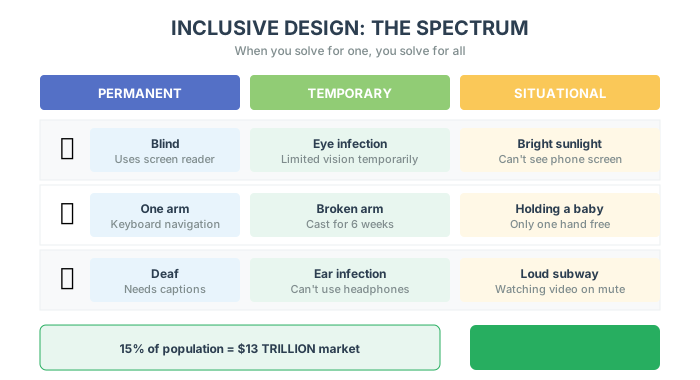
- Permanent: A user who is blind.
- Temporary: A user with a broken arm.
- Situational: A user holding a baby (like me), or standing in bright sunlight, or on slow airport Wi-Fi.
When you solve for one, you solve for all. When you add captions for the deaf, you help the guy watching videos on the subway with the sound off. When you increase contrast for the elderly, you help the guy looking at his phone on the beach.
Accessibility isn’t about “Helping them.” It’s about helping you make more money.
The Litigation Bomb (The Stick)
Section titled “The Litigation Bomb (The Stick)”If the carrot of $13 Trillion doesn’t move you, maybe the stick will.
In 2023 alone, there were over 4,000 lawsuits filed against websites for ADA violations.
It is not a matter of if a lawyer finds you. It is a matter of when.
- Cost of a lawsuit settlement: 50,000.
- Cost of fixing your code: $5,000.
You do the math. Being inaccessible is a liability. It’s a ticking time bomb in your P&L.
The SEO Bonus (The Hidden Carrot)
Section titled “The SEO Bonus (The Hidden Carrot)”Here is a secret that SEO “gurus” charge thousands for:
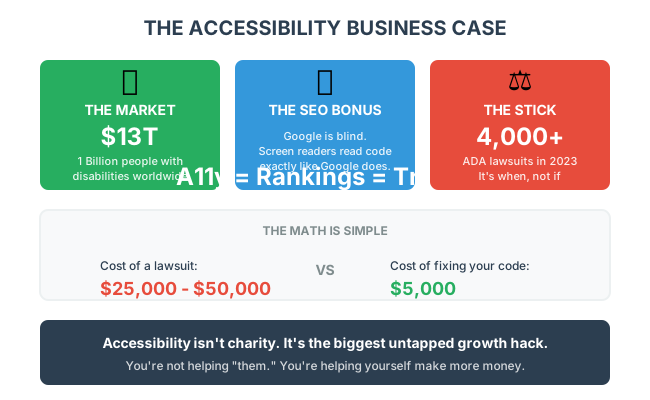
Google is blind.
Google’s bots scan your code. They don’t “see” your beautiful images. They read your Alt Text. They read your headers. They look for structure.
A screen reader (used by the blind) reads code exactly like Google does.
If you optimize your site for a screen reader, you are optimizing it for Google.
- Clear headings = Better SEO.
- Alt text on images = Better SEO.
- Logical structure = Better SEO.
Accessibility = Rankings = Traffic = Money.
The Accessibility Detection Protocol
Section titled “The Accessibility Detection Protocol”Before you fix anything, you need to know where you’re failing. Here’s a 30-minute audit that will reveal your blind spots.
Step 1: The Automated Scan (10 minutes)
Section titled “Step 1: The Automated Scan (10 minutes)”Run these free tools on your homepage, top product page, and checkout:
| Tool | What It Checks | 🚨 Red Flag If |
|---|---|---|
| WAVE | Errors, contrast, structure | > 5 errors per page |
| Axe DevTools | WCAG compliance | > 10 issues per page |
| Google Lighthouse | Accessibility score | Score < 80 |
Record your baseline:
- Homepage errors: ___
- Product page errors: ___
- Checkout errors: ___
- Lighthouse accessibility score: ___
🚨 Red Flag: If any page has more than 10 errors, you’re likely losing 5-10% of potential customers.
Step 2: The Manual Navigation Test (10 minutes)
Section titled “Step 2: The Manual Navigation Test (10 minutes)”Unplug your mouse. Navigate your site with keyboard only.
| Task | Pass/Fail | 🚨 Red Flag If |
|---|---|---|
| Tab to main navigation | Can’t reach it | |
| Tab to Add to Cart | Can’t find focus indicator | |
| Tab through checkout form | Skips fields or gets stuck | |
| Tab to complete purchase | Can’t submit form | |
| Press Enter on buttons | Nothing happens |
🚨 Red Flag: If you can’t complete a purchase with keyboard only, neither can millions of potential customers.
Step 3: The Visual Impairment Simulation (5 minutes)
Section titled “Step 3: The Visual Impairment Simulation (5 minutes)”| Test | How to Check | 🚨 Red Flag If |
|---|---|---|
| Color blindness | Use Coblis simulator | CTA buttons disappear |
| Low vision | Zoom browser to 200% | Layout breaks |
| Bright sunlight | Max phone brightness, go outside | Text unreadable |
| Squint test | Squint at your screen | Buttons invisible |
🚨 Red Flag: If your primary CTA becomes invisible under any of these conditions, you’re losing sales every day.
Step 4: The Content Audit (5 minutes)
Section titled “Step 4: The Content Audit (5 minutes)”| Content Element | Count | 🚨 Red Flag If |
|---|---|---|
| Images without alt text | ___ | > 0 on product pages |
| Videos without captions | ___ | Any |
| Form fields without labels | ___ | > 0 |
| Links that say “Click here” | ___ | > 0 |
| PDFs (inaccessible) | ___ | Any critical info in PDFs |
🚨 Red Flag: Missing alt text on product images means screen reader users can’t shop—and Google can’t index.
The 3-Tier Accessibility Fix Framework
Section titled “The 3-Tier Accessibility Fix Framework”Quick Fixes (This Week: 2-8 hours, immediate impact)
Section titled “Quick Fixes (This Week: 2-8 hours, immediate impact)”1. Fix Color Contrast
Run WebAIM Contrast Checker on your primary colors.
| Element | Minimum Ratio | Your Ratio |
|---|---|---|
| Body text | 4.5:1 | ___ |
| Large text/headings | 3:1 | ___ |
| Buttons and links | 4.5:1 | ___ |
Time: 2 hours Impact: Makes text readable for 8%+ of population with vision issues
2. Add Focus Indicators
When users Tab through your site, they should always see where they are.
:focus { outline: 3px solid #0066CC; outline-offset: 2px;}Time: 1 hour Impact: Enables keyboard-only navigation for millions
3. Add Alt Text to Product Images
For each product image:
- Describe what’s shown (not “product photo”)
- Include relevant details (color, material, angle)
- Be concise (under 125 characters)
Time: 2-4 hours (depending on catalog size) Impact: Enables screen reader users to shop + improves SEO
Medium Fixes (This Month: 1-3 weeks, systematic improvement)
Section titled “Medium Fixes (This Month: 1-3 weeks, systematic improvement)”1. Fix Form Accessibility
- Move labels outside input fields (not placeholders)
- Add error messages that explain what’s wrong
- Associate labels with inputs using
forattribute - Add autocomplete attributes for faster filling
Time: 1 week Impact: 10-20% improvement in form completion for all users
2. Add Skip Links
Let keyboard users skip the navigation and jump to main content.
<a href="#main-content" class="skip-link">Skip to main content</a>Time: 2-3 hours Impact: Makes navigation dramatically faster for keyboard users
3. Add Video Captions
Every video on your site needs captions:
- Product demos
- Testimonials
- Explainer videos
Time: 1-2 weeks (or use automated services) Impact: Opens video content to 15%+ of users who watch with sound off
Deep Fixes (This Quarter: 4-8 weeks, competitive advantage)
Section titled “Deep Fixes (This Quarter: 4-8 weeks, competitive advantage)”1. Full WCAG 2.1 AA Compliance Audit
Hire an accessibility specialist to audit your entire site and create a remediation roadmap.
Time: 4-6 weeks Impact: Legal protection + access to $13T market
2. Screen Reader Testing
Test your site with actual screen readers (VoiceOver, NVDA, JAWS).
Not just automated tools—real user flows:
- Find a product
- Add to cart
- Complete checkout
- Track order
Time: 2-4 weeks Impact: Ensures real-world usability for blind and low-vision users
3. Build Accessibility Into Your Process
- Add accessibility checklist to design review
- Include accessibility in QA testing
- Train content team on alt text and structure
- Add accessibility to developer onboarding
Time: 4-6 weeks Impact: Prevents accessibility debt from accumulating
The “Open Door” Protocol: 5 Simple Fixes
Section titled “The “Open Door” Protocol: 5 Simple Fixes”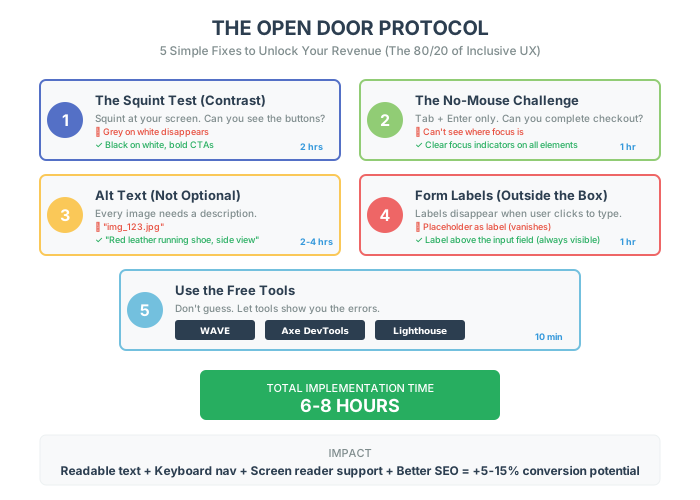
You don’t need to rebuild your site from scratch. You just need to unlock the doors. Here is the 80/20 of Inclusive UX.
1. The “Squint Test” (Contrast)
Section titled “1. The “Squint Test” (Contrast)”Go to your website. Squint your eyes until things get blurry. Can you still read the text? Can you see the buttons? If your grey text on a white background disappears, fix it. Low contrast causes eye strain for everyone. Make it black on white. Make it bold. Stop being subtle. Subtle doesn’t sell.
2. The “No Mouse” Challenge
Section titled “2. The “No Mouse” Challenge”Unplug your mouse. Try to buy a product on your site using only the Tab and Enter keys. If you get stuck, or if you can’t tell where the focus is, you have failed. This is how millions of people navigate the web. If they can’t Tab, they can’t buy.
3. Alt Text Is Not Optional
Section titled “3. Alt Text Is Not Optional”Every image needs a description. Bad: “img_123.jpg” Good: “Red leather running shoe, side view.” Describe it like you are talking to a friend on the phone. This helps the blind visualize the product, and it helps Google index it.
4. Form Labels
Section titled “4. Form Labels”Do not use “placeholders” inside the box as labels. When a user clicks the box to type, the placeholder disappears. Now they forgot what they were supposed to type. Put the label outside the box. “Email Address.” “Phone Number.” Clarity impacts conversion.
5. Use the Tools
Section titled “5. Use the Tools”You don’t have to guess. Use free tools to check your work.
- WAVE (Web Accessibility Evaluation Tool): It puts red icons on your errors.
- Axe: A chrome extension that audits your page.
Case Study: The Accessibility Revenue Lift
Section titled “Case Study: The Accessibility Revenue Lift”A specialty outdoor gear brand came to me with a mystery. Their traffic was growing, but conversion rate was declining. “Our site looks better than ever,” they said. “We just redesigned it.”
The Situation
Section titled “The Situation”Their new design was sleek. Minimal. Trendy. Light gray text on white backgrounds. Subtle animations. Beautiful photography.
And completely inaccessible.
Their numbers told the story:
- Conversion rate: Dropped from 2.8% to 1.9% after redesign
- Bounce rate: Increased 23%
- Mobile conversion: Down 34%
- Checkout abandonment: Up 18%
The Detection Phase
Section titled “The Detection Phase”We ran the Accessibility Detection Protocol:
Automated Scan:
- Homepage WAVE errors: 47 (🚨 Critical)
- Product page errors: 31 (🚨 Critical)
- Lighthouse accessibility score: 54 (🚨 Below 80)
Manual Navigation Test:
- Couldn’t Tab to Add to Cart (🚨)
- No visible focus indicator anywhere (🚨)
- Checkout form fields weren’t labeled (🚨)
Visual Impairment Simulation:
- Squint test: Primary CTA invisible (🚨)
- Color contrast on buttons: 2.1:1 (🚨 Should be 4.5:1)
- Text contrast: 2.8:1 (🚨)
Content Audit:
- 340 product images without alt text (🚨)
- Size guide in inaccessible PDF
- All form labels were placeholders
The Real Problem
Section titled “The Real Problem”Their “beautiful” redesign had made the site unusable for:
- 15% of population with disabilities
- Older customers (major demographic for outdoor gear)
- Anyone shopping on a phone in bright sunlight
- Anyone with imperfect vision
- Anyone navigating with keyboard
That’s not a niche. That’s a significant chunk of their customer base.
The Intervention
Section titled “The Intervention”Week 1-2 (Quick Fixes):
- Fixed color contrast (gray to black text)
- Added focus indicators
- Made buttons visible (higher contrast background)
- Added alt text to top 100 product images
Week 3-4 (Medium Fixes):
- Moved form labels outside input fields
- Added skip links
- Fixed keyboard navigation order
- Converted PDF size guide to accessible HTML
Week 5-8 (Deep Fixes):
- Added alt text to all 2,400 product images
- Conducted screen reader testing
- Built accessibility checklist into design review
The Results
Section titled “The Results”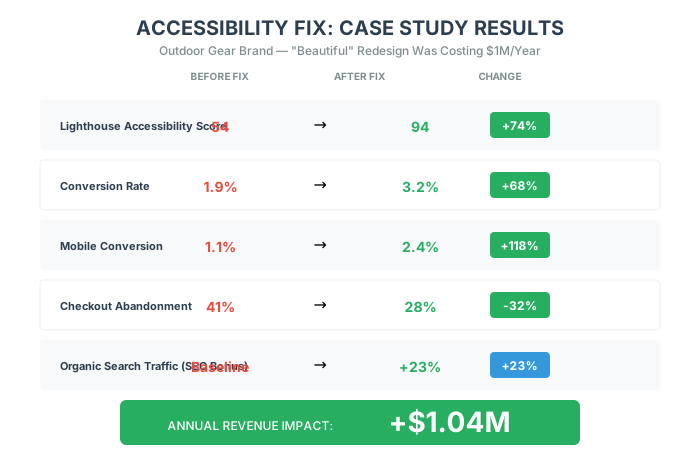
| Metric | After Redesign | After Fix | Change |
|---|---|---|---|
| Lighthouse Accessibility | 54 | 94 | +74% |
| Conversion Rate | 1.9% | 3.2% | +68% |
| Mobile Conversion | 1.1% | 2.4% | +118% |
| Checkout Abandonment | 41% | 28% | -32% |
| Organic Search Traffic | Baseline | +23% | SEO boost |
Monthly revenue increase: +1.04M
The Unexpected Wins
Section titled “The Unexpected Wins”SEO Boost: Adding alt text to 2,400 images gave them a 23% increase in organic image search traffic within 60 days.
Reduced Support Tickets: Fixing form labels reduced checkout-related support tickets by 45%.
No Lawsuit: Six months earlier, a competitor was sued for accessibility violations. Cost them $40,000 to settle.
The Lesson
Section titled “The Lesson”Their “beautiful” redesign was costing them over $1 million per year.
Not because the design was wrong. Because they optimized for aesthetics over usability.
The irony? The accessible version looked nearly identical. They just changed colors and added labels.
Accessibility isn’t charity. It’s revenue you’re currently leaving on the table.
The Bottom Line
Section titled “The Bottom Line”Making your site accessible is the ultimate selfish act.
You tell yourself you are doing it to be a “good person.” But you are really doing it because:
- You want the $13 Trillion market.
- You don’t want to get sued.
- You want better SEO.
And that is okay.
In the end, everyone wins. Your grandmother can read your font. The blind user can buy your shoes. And you get to keep the profit.
In the next chapter, we’re going to dive into the dark arts of Psychology and Persuasion—how to use the human brain’s bugs to drive even more sales.
Five things to do this week
Section titled “Five things to do this week”- Do The Squint Test: Open your homepage. Squint until it’s blurry. If your “Shop Now” button disappears, change the color immediately. If your text becomes invisible, increase the contrast.
- Unplug Your Mouse: Try to checkout on your site using only
TabandEnter. If you get stuck, you are blocking 15% of the world. Fix the tab order. - Audit Your Alt Text: Go to your top 10 best-selling products. Do the images have names like “DSC_001.jpg”? Change them to descriptive text: “Man exploring a cave wearing the Helios Headlamp.”
- Fix Your Forms: Go to your checkout. Are the labels inside the boxes? Move them out. Make them visible at all times. This is the easiest conversion lift you will get today.
- Run a WAVE Audit: Download the WAVE browser extension. Run it on your homepage. It will show you big red errors. Fix the top 3 errors. Ignore the “warnings” for now. Just kill the errors.